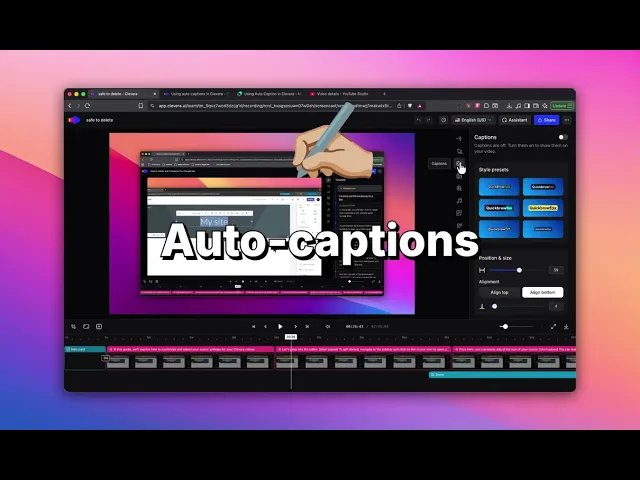
Clevera Update: Customizing Video Captions and Cursor Effects

Summary
Clevera’s editor offers granular control over the look and feel of your video captions and mouse cursor behavior. With these tools, you can ensure your video content is not only accessible but also visually aligned with your brand, making your walkthroughs, tutorials, and presentations more engaging for your viewers.
What’s new
The editor features a consolidated right-hand sidebar that puts all customization options at your fingertips. Instead of navigating separate menus, you can now toggle between the Captions and Cursor tabs to make adjustments in real time. This unified interface allows you to modify everything from text animation and typography to cursor size and click sound effects, giving you full creative control over how your viewers experience your screen recordings.
How to use it
You can customize your video elements directly in the project editor. The interface is designed to let you see your changes immediately, so you can experiment with different styles until you find the perfect fit.
Step 1: Customize caption styles and animations
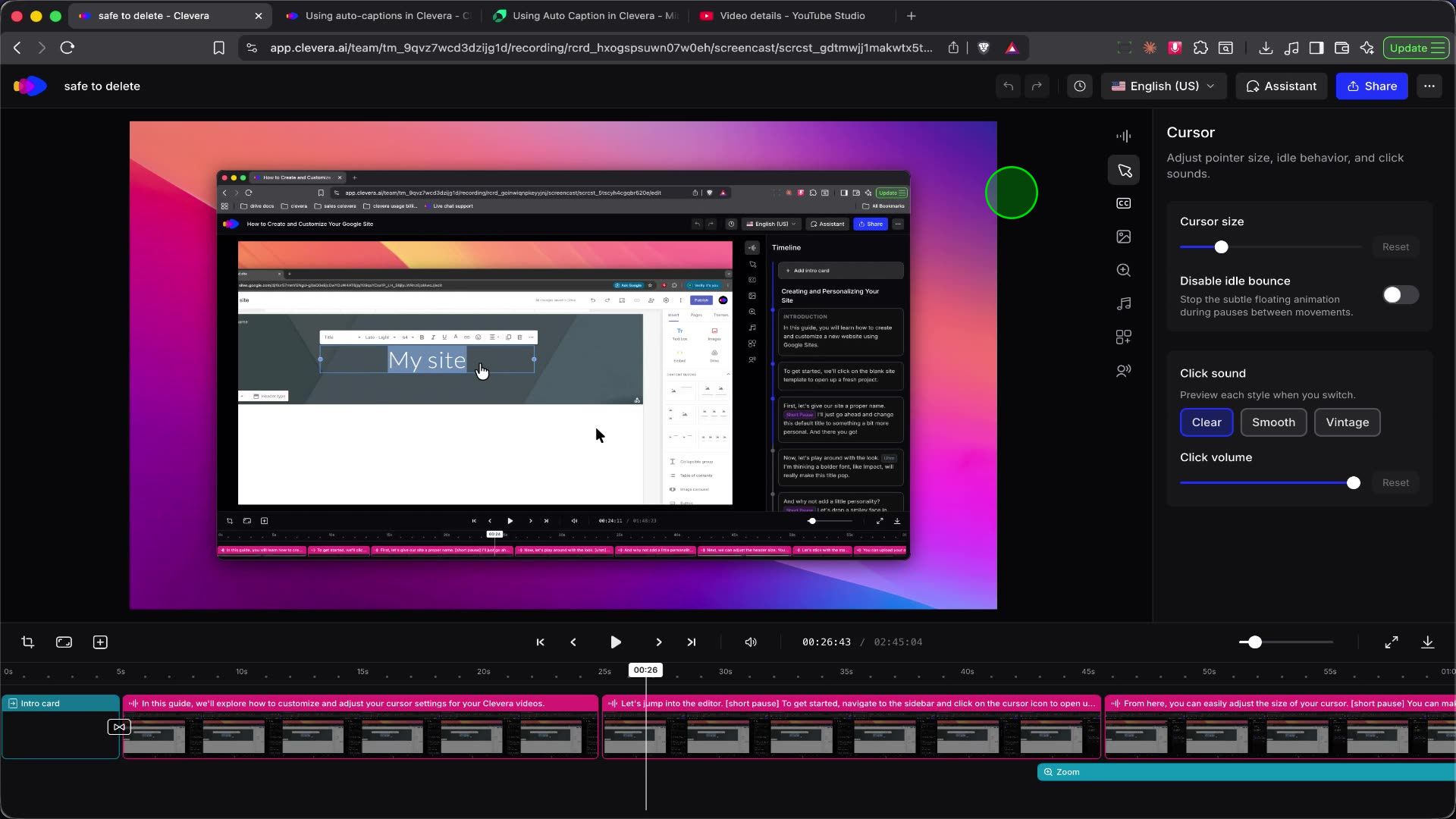
To adjust how your captions appear, open the Captions tab in the right-hand panel. Here, you can select from various Style presets to quickly change the aesthetic of your text. Below the presets, you will find settings for Position & size, where you can set the alignment of the text on the screen.
The Word highlight section is particularly useful for emphasizing specific concepts. You can choose from several animation effects like Scale, Lift, Bounce, Glow, or Reveal, and then set the specific text and highlight colors to match your branding.
Step 2: Adjust typography and text appearance
For deeper text customization, scroll down within the Captions panel to the Typography and Text Outline sections. This is where you can change the font, adjust the font weight (e.g., Extra Bold), and tweak the Font size and Word Spacing to ensure your captions are perfectly legible. You can also add a Caption background color or an Outline to the text to improve contrast against complex backgrounds.
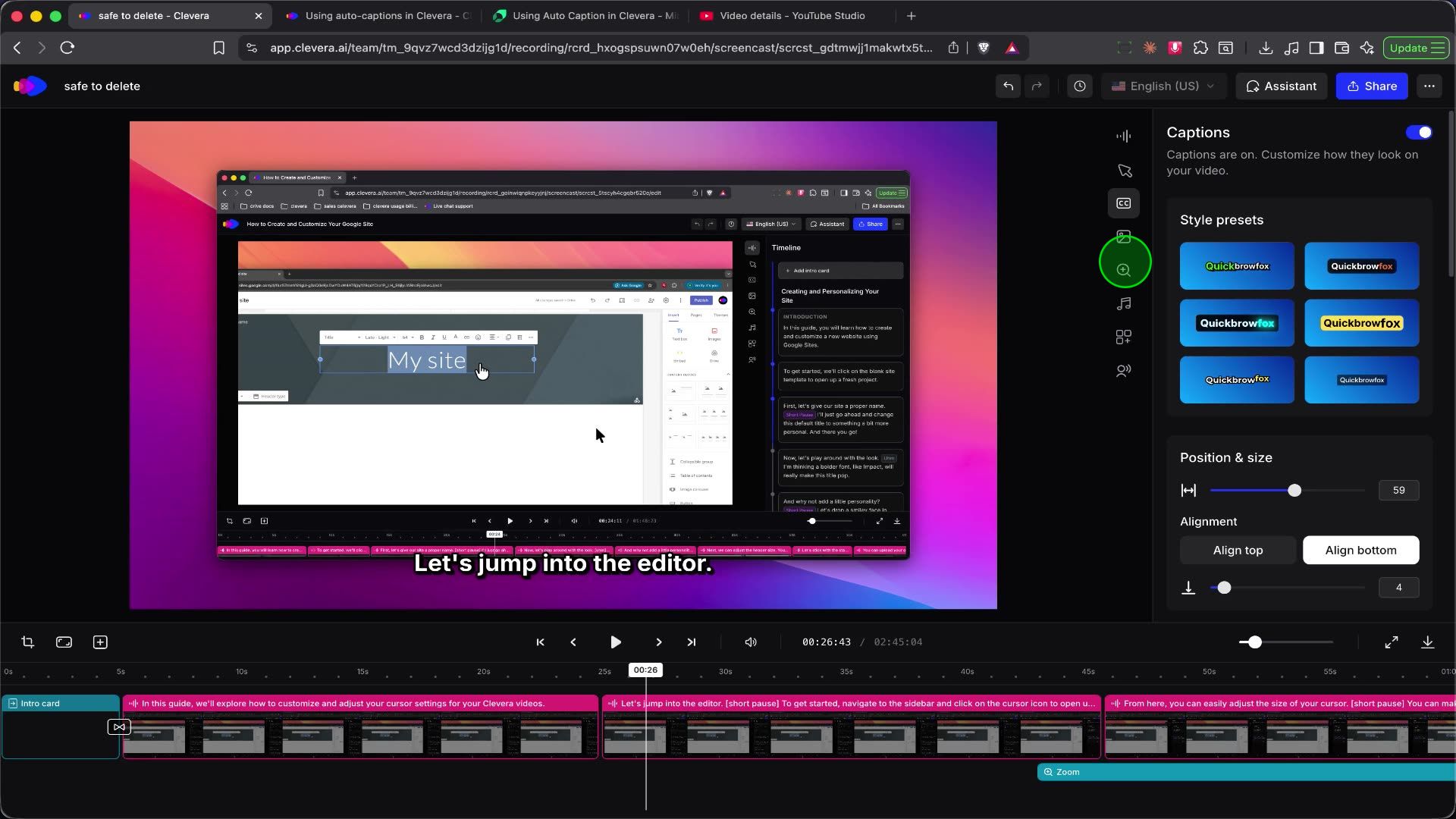
To explore every caption option in detail, check out our full guide on Using Auto Caption in Clevera.
Step 3: Configure cursor behavior
If your video includes screen interactions, head over to the Cursor tab. This panel allows you to modify how the mouse pointer behaves, which helps viewers follow your actions more easily. You can adjust the Cursor size using the slider, toggle Disable idle bounce to make the cursor stop moving, and manage Click sound with options to switch between different sound profiles like Clear, Smooth, or Vintage. You can also control the Click volume to ensure the feedback is audible but not overpowering.
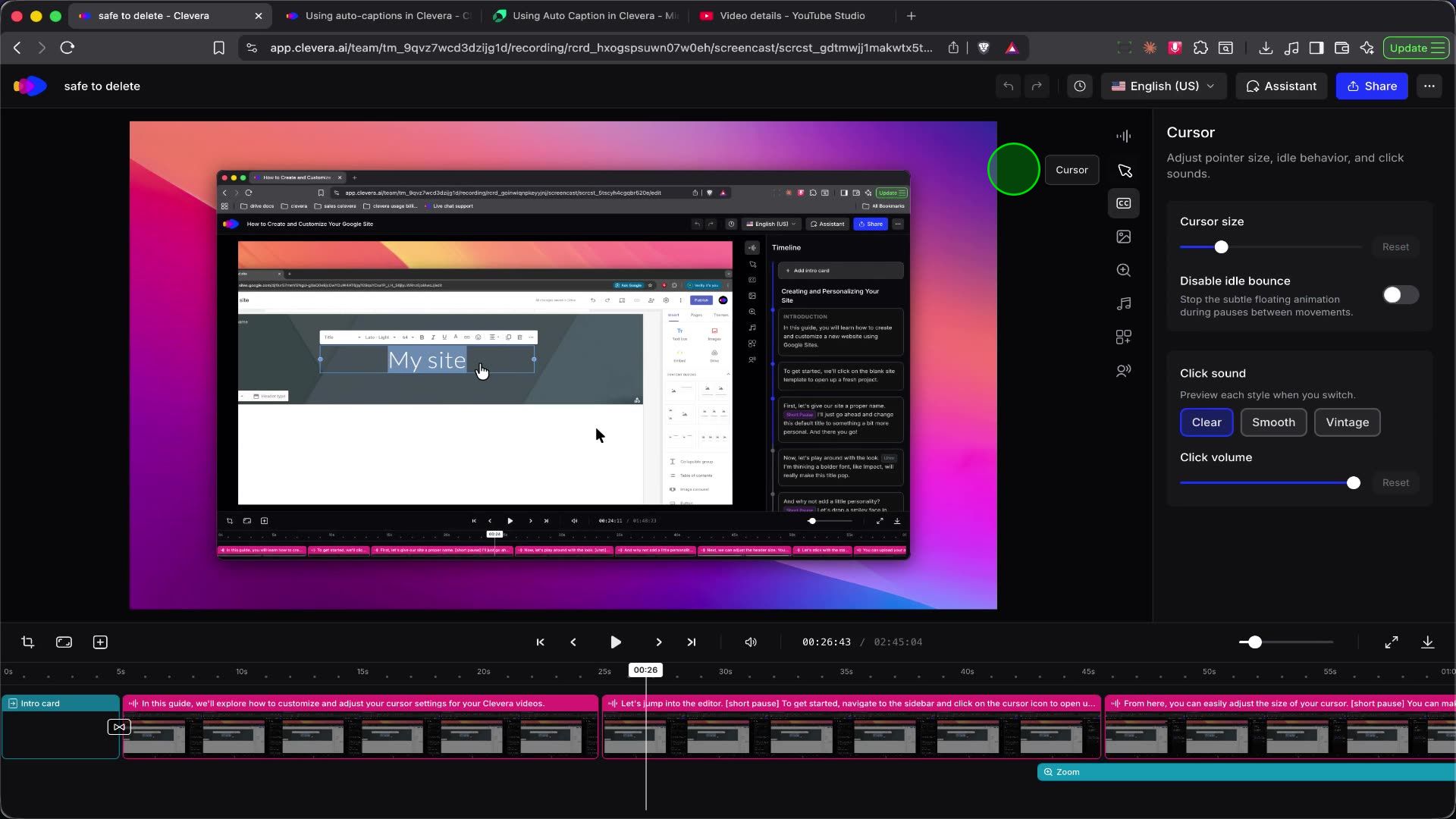
For a complete guide to all cursor controls, see our full guide on How to Customize Cursor Settings.
Availability, limitations, or notes
These customization features are available directly within the Clevera editor for all projects. Note that changes made to caption styles or cursor behavior are applied globally to the specific element selected.