AI video tutorial maker: 3 Clevera tips that instantly make your videos sound smarter
You hit record. You do the flow. You stop. Clevera generates the video, and it’s… good.
But one line feels slightly off. A step gets explained like it guessed your intent. The voiceover sounds like it changed tone mid-sentence.
That’s the part that drives teams nuts, especially customer success managers and product marketers who need customers to trust what they’re watching.
The good news: you don’t need a studio setup. You need three small habits that make Clevera’s AI more precise, the edits faster, and the voiceover less weird.
What “better Clevera videos” really means
Making better videos with an AI video tutorial maker means capturing clearer intent while you record, then using AI-assisted edits to correct small inaccuracies, and finally cleaning up voiceover inconsistencies so the finished tutorial sounds like one confident narrator, not a stitched-together robot choir.
Tip 1: talk while you record, but narrate “why,” not “what”
Yes, Clevera can create videos even if you stay silent. That’s one of the reasons teams love it.
But when you speak while recording, you’re giving Clevera extra context. Think of it like adding street signs to a road trip. The route still exists without them, but the signs prevent wrong turns.
Here’s the part most people miss: don’t narrate obvious actions.
Bad narration:
“I click settings. I click billing. I click invoices.”
Good narration (what I recommend):
“I’m going to billing because this is where you download invoices. If you don’t see invoices, you’re probably missing admin access.”
That “because” sentence is gold. It tells Clevera your intent, and it often leads to a more precise script and smarter emphasis.
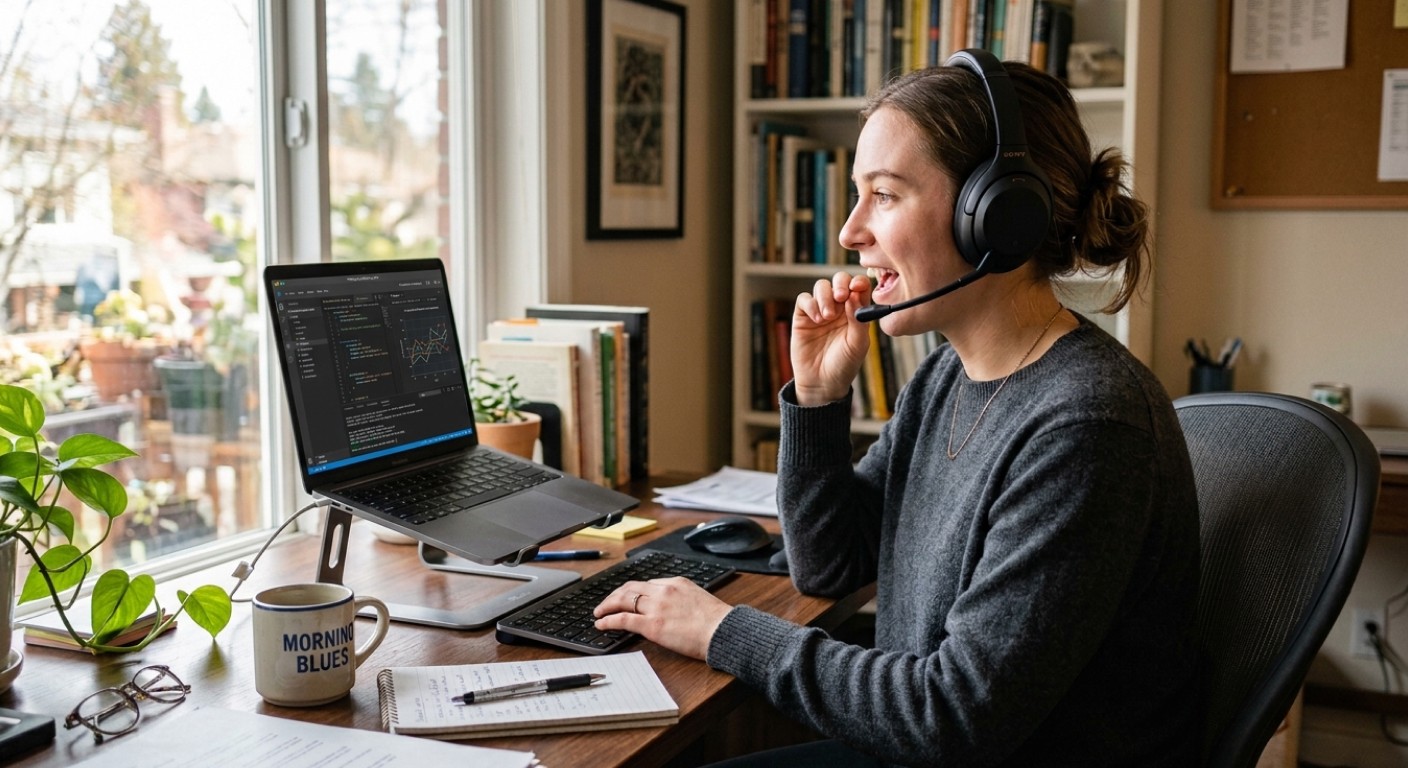
Keep in mind that your voice won’t appear in the final video. Clevera’s AI uses your spoken input only to refine and enhance the narration it generates. Whatever you say is automatically corrected and improved, so there’s no need to speak perfectly. Focus on giving the AI clear clues about your intent, even if your sentences aren’t grammatically perfect.
Tip we use internally:
Record one “intent sentence” per section change. Every time you move to a new page or feature, say one sentence that starts with:
“The goal here is…”
“Watch for…”
“If this looks wrong, it usually means…”
It’s the fastest way I know to reduce those slightly-off explanations that cause re-records.
If you’re building onboarding flows, pair this habit with Clevera’s video creation workflow so your AI onboarding video software outputs stay consistent across your whole library.
Important note: Remember to enable microphone from Clevera app before recording starts.
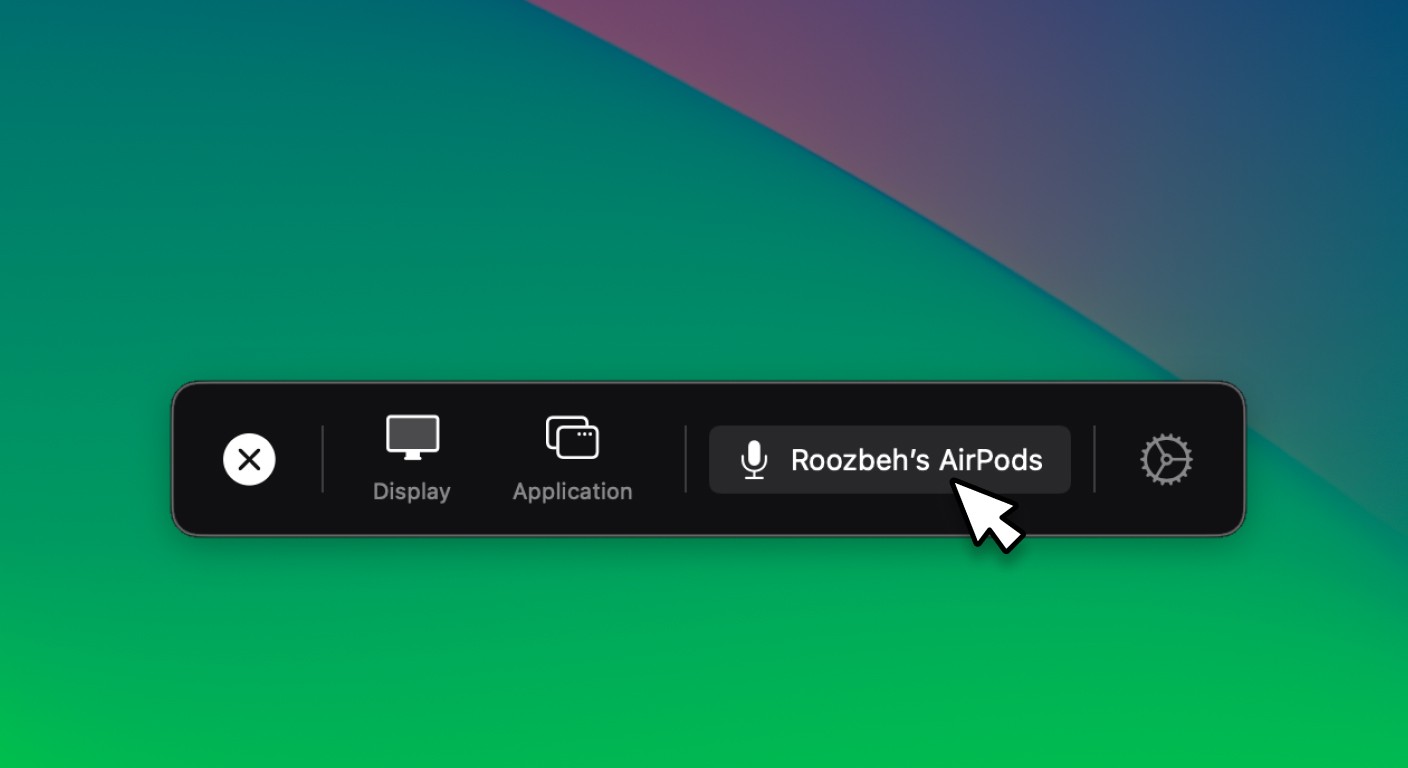
Tip 2: use the AI assistant after generation (don’t accept the first draft)
Most people treat the first generated video like it’s final. That’s like tasting soup and refusing to add salt out of principle.
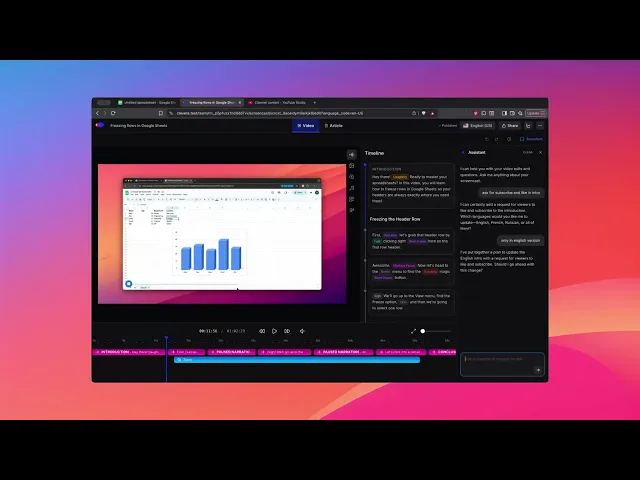
Clevara is designed for fast iteration: generate, review, then edit in the timeline or with the AI assistant.
When something feels off, open the assistant and ask for a specific change.
Use requests like these:
“Rewrite the voiceover about X to explain why this setting matters.”
“Remove the sentence about X, we don’t support that in this plan.”
“Make the tone more direct and shorter”
“Change ‘users’ to ‘admins’ in the narration across the whole video.”
In my experience, the AI assistant works best when you give it one of these anchors:
the exact sentence(s) or chapter you want changed
the intent of the section (what the viewer should learn)
Why this matters for product demo video quality: demos fail when they explain everything. Tight edits make the value pop. Use the assistant to cut filler and keep only the moments that prove the point.
If you also publish written guides, link the video to your docs by using Clevera’s documentation feature for turning recordings into articles and keep your customer education videos and written steps aligned.
Tip 3: regenerate voiceover when a line sounds “off”
Sometimes the voiceover sounds slightly different from one sentence to the next. It can feel like your narrator swapped bodies mid-paragraph.
This usually happens because TTS can generate lines in chunks, and occasionally one chunk lands with different cadence or tone. The workaround is simple: regenerate the voiceover for the odd segment, and try once or twice until it matches the surrounding lines.
What to listen for:
a sentence that’s louder or quieter than the rest
a different pace (suddenly rushed)
a weird tone, mood or even voice change
a line that sounds like it was recorded in a different room
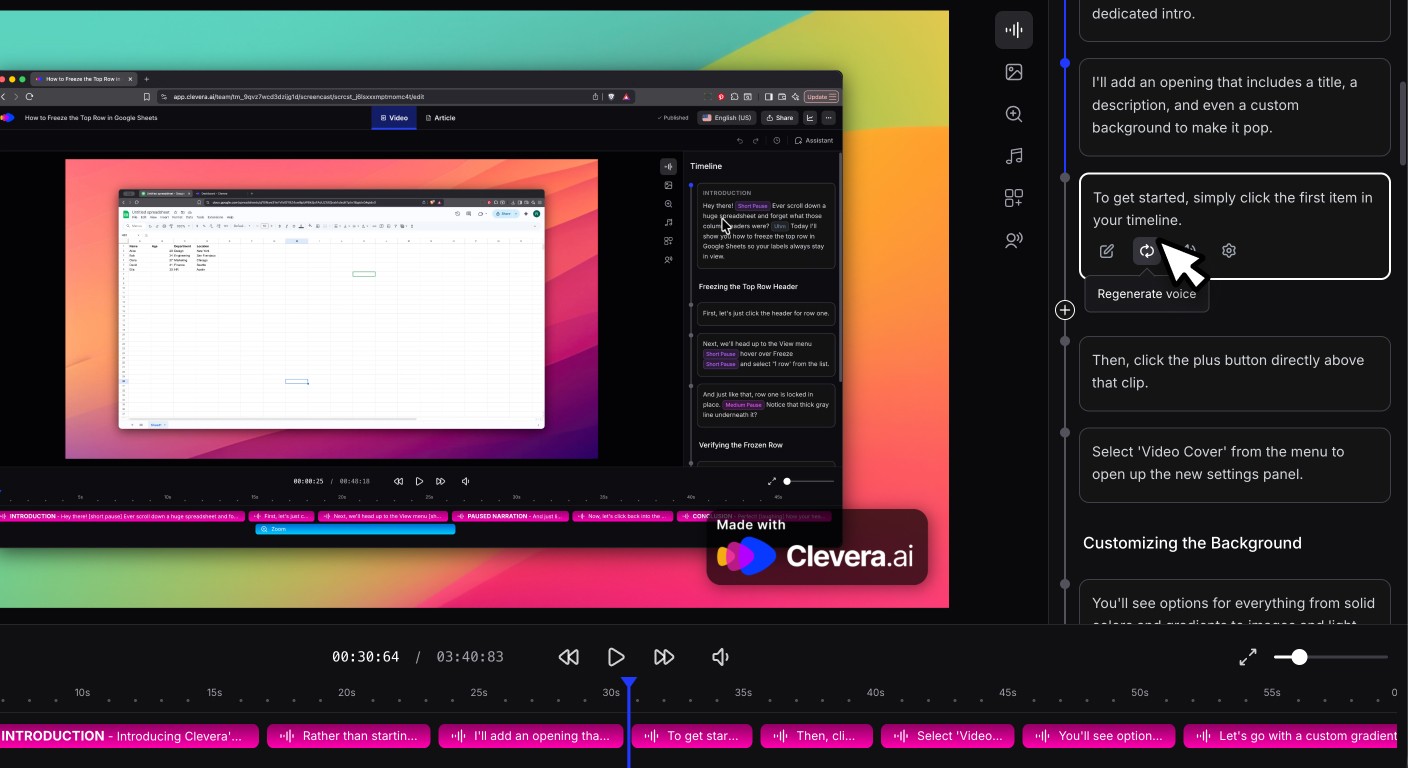
My rule of thumb: if the mismatch is noticeable on headphones, it will feel twice as noticeable to a customer watching at 1.25x speed.
This quick regenerate habit is a small move that noticeably improves customer education videos, especially when the tutorial is short and every sentence stands out.
Your kicker challenge
Record your next Clevera video and say one intent sentence every time you change screens. Then do a single AI assistant pass, and regenerate any odd line once.
If the final video doesn’t feel more accurate, I’ll be surprised. What part of your current workflow makes videos drift from “correct” to “almost correct”?