AI video tutorial maker checklist for SaaS Teams (avoid the “outdated on launch day” trap)
Last Tuesday, a product manager shipped a tiny UI tweak, just a tiny toggle added to the form.
By Thursday, your onboarding video was lying to customers.
Support tickets started rolling in like shopping carts with a busted wheel: loud, wobbly, and impossible to ignore. And the worst part? The video wasn’t “wrong enough” to remove… just wrong enough to quietly destroy trust.
That’s why SaaS teams don’t just need an AI video tutorial maker. They need one that stays sane when your product changes weekly, without forcing you into a full re-record spiral. This is the checklist I use when evaluating an AI how-to video creator for customer education videos.
What an AI video tutorial maker actually is
An AI video tutorial maker is software that turns a screen recording into a polished tutorial by auto-editing mistakes, generating (or improving) a script, producing voiceover, and packaging the result for sharing. So SaaS teams can publish customer education videos fast and keep them consistent without hiring a full video crew.
The hidden cost nobody budgets for: the “maintenance tax”
Most teams evaluate tools like they’re buying a camera: Does it record? Does it look nice?
But tutorial videos aren’t a camera purchase. They’re a subscription to future upkeep.
Here’s my un-Googleable rule of thumb:
If a tutorial includes volatile UI (menus, labels, navigation), you’re not making a video - you’re creating a maintenance obligation.
So the real question becomes: How cheaply can you update “truth” when your product changes?
That’s why your checklist has to prioritize editability + updates + sharing just as much as speed.

1. Speed that doesn’t create “chipmunk tutorials”
Yes, speed matters but I’m opinionated here: fast is useless if it forces ugly shortcuts.
Check these:
Time to first draft: Can you go from recording → publishable video in minutes (not “later today”)?
Smart trimming: Does it remove dead air, misclicks, and wandering cursor moments automatically?
No “awkward fast-forward”: Watch for jittery pacing and unnatural speed ramps.
Red flag: “We can speed it up 2x.”
Green light: “We rebuild it cleanly so it feels naturally concise.”
This matters because your viewers aren’t “watching a tutorial.” They’re trying to escape a problem.
2. Editability (can you fix one sentence without starting over?)
This is where most tools quietly fail.
You want a tool that treats tutorial creation like editing a doc, not like editing a movie in 2009.
Look for:
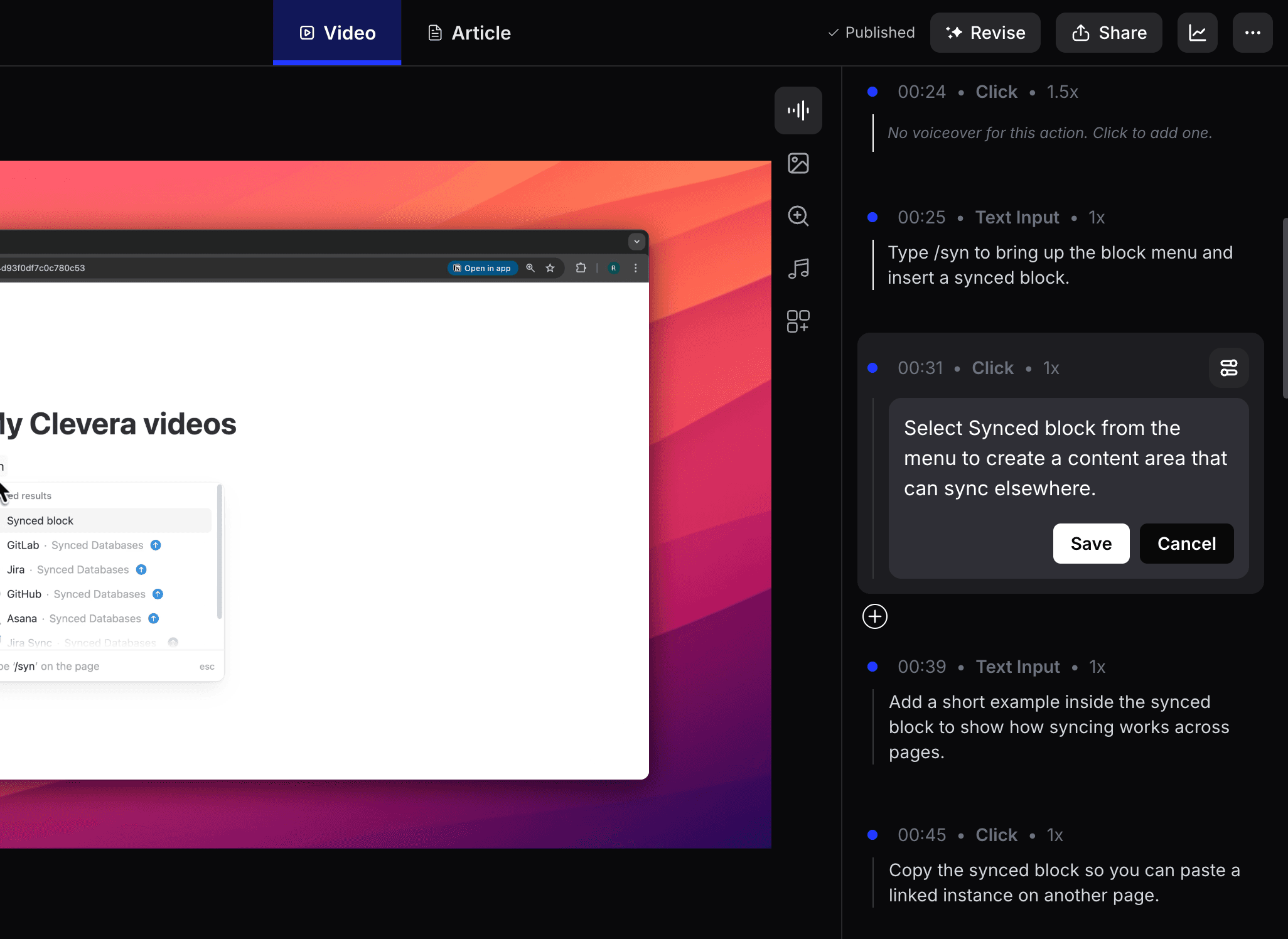
Script-level editing: Change the wording → regenerate voiceover → video re-syncs automatically.
Timeline control (when you need it): Easy to adjust a moment without deep video-editing skills.
Segment replacement: Swap only step 3 without redoing steps 1–10.
If you can’t edit like this, every small product change becomes a full re-record. That’s the maintenance tax again.
This is exactly why we built Clevera as an AI tutorial maker with an intuitive timeline editor where you can rewrite voiceover scripts and instantly regenerate the video, no re-record required.
3. Voiceover quality (your tutorial shouldn’t sound like a GPS)
Voiceover is the “trust layer.” When it’s bad, everything feels scammy, even if the steps are correct.
Evaluate:
Natural prosody: Does it pause in the right places, emphasize the right words?
Tone control: Can you choose “friendly,” “direct,” “calm,” etc.?
Pronunciation tools: Can it handle your product name, acronyms, and weird SaaS words?
Multi-language (if you’re global): Bonus if translations don’t sound robotic.
Clevera, for example, generates an insightful voiceover script from on-screen actions (even without user narration) and produces a professional AI voiceover that syncs to the video.
4. Updates (how your customer education videos survive weekly releases)
There are two types of updates:
Content updates (wording, emphasis, callouts, blur/highlights, branding)
Reality updates (the UI actually changed)
A great tool helps with both, but you should be clear-eyed:
If the UI changes, no tool can magically rewrite past pixels. You’ll usually need a fresh recording.
But the best tools make that refresh cheap and fast.
What to look for:
Live embeds: Update the published video and have it reflect everywhere it’s embedded.
Lightweight edits post-publish: Fix narration, overlays, highlights without exporting a new file.
Fast rebuild when UI changes: Minutes, not days, to recreate a new version.
Clevera’s LiveSync approach is built for the first category; published embeds update instantly when you change narration, overlays, highlights, styling, and more. When the UI itself changes, you still re-record, but you can remake the whole video quickly because the workflow is automated.
Practical workflow tip (steal this):
Design tutorials in layers:
Keep volatile UI steps short and modular (easy to redo).
Put “evergreen” context (why it matters, best practices) in the voiceover and overlays (easy to update).
That one habit cuts maintenance pain in half.
5. Sharing (embed, permissions, analytics, and “don’t make me chase links”)
A tutorial that can’t be shared cleanly becomes a Slack file nobody can find.
Check:
Embed options: Can you embed in your help center, docs site, or in-app?
Stable URLs: Does every update force a new link?
Permissions: Public, unlisted, workspace-only; whatever your security needs.
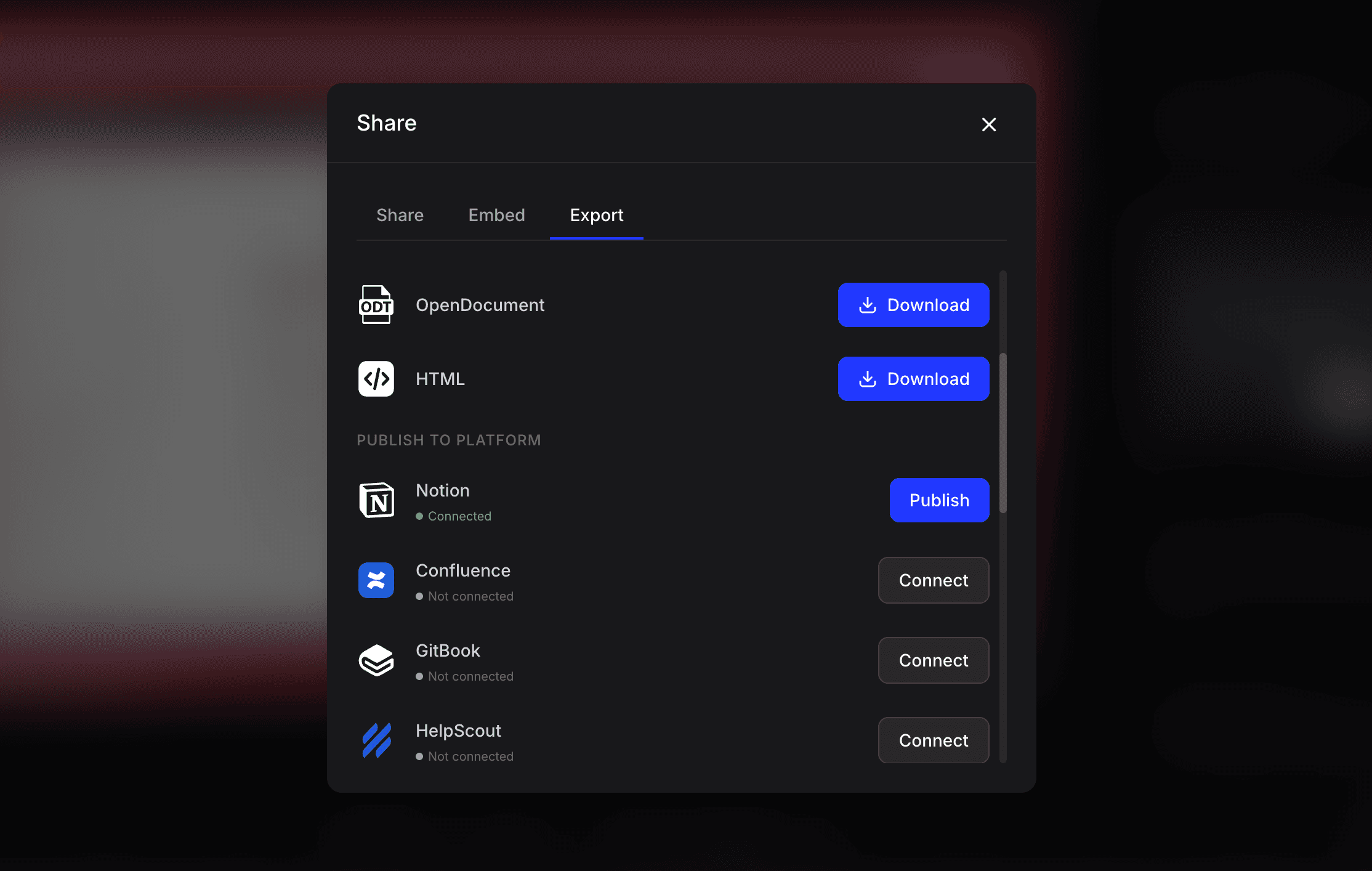
Export formats: MP4 when you need it, but embeds for everything else.
Clevera supports MP4 export and HTML embeds, and embed updates can stay live when you publish changes.
Tutorial video best practices that make AI output feel intentional (not auto-generated)
AI can do the heavy lifting, but you still need taste.
The 60-second structure that almost always wins
10s: State the outcome (“You’ll set up X in under 2 minutes.”)
30s: Do the steps with minimal detours
20s: Call out the #1 pitfall + where to go next
Red flags vs green lights
Red flags
“Welcome to this tutorial where I’ll be showing you…” (wasted oxygen)
Long cursor wandering
One 8-minute mega-video for five different jobs-to-be-done
Green lights
Outcome-first intros
Short, modular videos (1–3 minutes each)
“Next step” links directly under the video (docs, checklist, feature page)
If you’re building a library, consider pairing each video with an auto-generated article so users can skim, search, and copy steps. Clevera can generate both from the same recording: video first, article optional.
The actual buyer checklist (copy/paste into your eval doc)
Score each tool 1–5.
Speed
[ ] Time to first draft is under 10 minutes
[ ] Auto-removes dead air/misclicks cleanly
[ ] Output pacing feels natural
Editability
[ ] Script edits regenerate voiceover + re-sync video
[ ] Replace a segment without re-recording everything
[ ] Non-editors can make changes confidently
Voiceover quality
[ ] Sounds human (prosody + emphasis)
[ ] Tone and voice options are usable
[ ] Handles product names/acronyms reliably
Updates & maintenance
[ ] Post-publish edits don’t require re-export
[ ] Embeds stay live when updated
[ ] Recreating updated UI videos is fast and repeatable
Sharing & distribution
[ ] Easy embed in help center/docs
[ ] Stable links and clear permissions
[ ] Export options (MP4 + embed) fit your workflow
Decision rule I use: If a tool scores under 4 on Editability or Updates, it will cost you more than it saves.
Where Clevera fits (and when it doesn’t)
If your team needs to turn silent screen recordings into polished tutorials fast, with editable narration and a workflow that supports ongoing updates, Clevera is built for that exact pain.
Clevera is especially strong when you want:
A narrated tutorial without recording your own voice
Quick script rewrites + regenerated voiceover
“Publish once, update everywhere” embeds
Video + written documentation from the same capture
When Clevera might not be the best fit:
You’re producing cinematic brand videos (not screen-based tutorials)
You want to create videos with a human picture-in-picture in the corner, presenting the video in real time.
Your tutorials rely heavily on live footage, actors, or complex motion graphics
Questions SaaS teams actually ask before they buy
How do I choose between an AI video tutorial maker and a regular screen recorder?
If you publish more than a handful of tutorials, the winner is the tool that reduces editing + maintenance, not the one that records pixels.
What makes an AI how-to video creator “enterprise-ready”?
Look for permission controls, stable embeds, collaboration, and an update workflow that doesn’t break links.
How long should customer education videos be?
Most “how-to” tutorials should land between 60–180 seconds. If it’s longer, split it by task.
Do AI voiceovers hurt trust?
Only when they sound fake. Natural pacing and correct pronunciation matter more than “human vs AI.”
Can I keep tutorials updated when the UI changes weekly?
Yes, if you build modular videos and pick a tool that makes re-creation cheap, and post-publish edits painless.
Your kicker
Pick one of your existing tutorials that’s already outdated (you know the one).
Run it through this checklist and time how long it takes to get back to “true.”
If it takes more than 30 minutes, your tool isn’t saving time. It’s just moving the pain around.