AI How-To Video Creator: Clean Walkthroughs in Minutes
You know the moment.
You finish a quick screen recording for a teammate, hit stop… and immediately regret it.
There’s the long pause where you hunted for the right menu. The misclick that opened the wrong tab. The little sigh you did when the page didn’t load. It’s all there, preserved like a mosquito in amber.
Now you have a choice:
Spend your afternoon trimming a timeline like it’s 2009.
Or publish something that looks like a “behind the scenes” documentary of you struggling.
This is exactly the gap an AI how-to video creator should fill. Not “make videos” in the abstract. Make the video you meant to record.
What an AI how-to video creator actually does
An AI how-to video creator is software that turns raw screen recordings into polished tutorials by automatically removing dead time and mistakes, generating a clear voiceover, and re-timing the visuals so the walkthrough feels intentional. It helps teams ship consistent customer education videos without manual editing.
The real enemy is not “editing”, it’s “cleaning”
I’m opinionated about this: most tutorial videos don’t need cinematic editing.
They need cleaning.
The same way you don’t “edit” a messy kitchen, you just remove what shouldn’t be there.
In screen recordings, the junk is predictable:
Pauses (thinking, loading, switching apps)
Misclicks (wrong menu, wrong tab, undo, redo)
Wandering cursor (the “where is it… where is it…” spiral)
Accidental detours (notifications, side quests, dead ends)
Awkward pacing (speeding up 4x, then slowing down, then speeding again)
A good AI video tutorial maker removes those without making the final video feel like it was chopped with scissors.
The “raw to polished” pipeline (and what gets removed)
Here’s the pipeline we built in Clevera, because manual cleanup is the part that quietly destroys your schedule.
1) Capture like a normal human
Record your workflow on macOS or Windows. No special behavior. No “performing.”
Clevera captures:
Screen recording
Key screenshots
Mouse and keyboard interactions
Context about what’s happening on-screen
2) AI cleaning: remove the stuff you’d be embarrassed to show
This is where the magic should feel boring (in a good way).
Clevera automatically removes:
Accidental clicks
Irrelevant footage
Pauses and dead time
It also smooths cursor movement and can zoom into the important area at the right moment, so viewers don’t play “Where’s Waldo” with your UI.

3) Voiceover that matches what actually happened
This is the part most tools fake.
Clevera analyzes the actions on-screen and writes a voiceover script that explains the workflow clearly, even if you recorded in silence. Then it generates a natural voiceover and syncs the timing to match.
If you want to tweak tone, wording, or add a custom line at a specific moment, you can.
4) Edit only what matters
Instead of dragging clips around for an hour, you review and adjust:
The script
The timing
The highlights, zoom, blur, overlays
Branding and container styling
5) Publish once, update later
Clevera exports to MP4 and also supports live embeds. When you update the video in Clevera, embeds update everywhere without re-exporting.
That’s huge for product walkthroughs that need tiny narration tweaks after launch.
A quick comparison: manual editing vs an AI-assisted walkthrough
Task | Manual workflow | With Clevera |
|---|---|---|
Remove pauses | Scrub timeline, slice, ripple edit | Automatically removed |
Fix misclick moments | Find, cut, hide mistakes | Automatically removed |
Add voiceover | Write script, record, re-record | AI writes + generates voiceover, synced |
Guide attention | Keyframes, zooms, highlights | Smart zoom + highlights |
Keep it up to date | Re-export, re-upload, replace links | Live embeds update after edits |
If your team ships frequent changes, this is the difference between “we’ll update the tutorial later” and actually updating it.
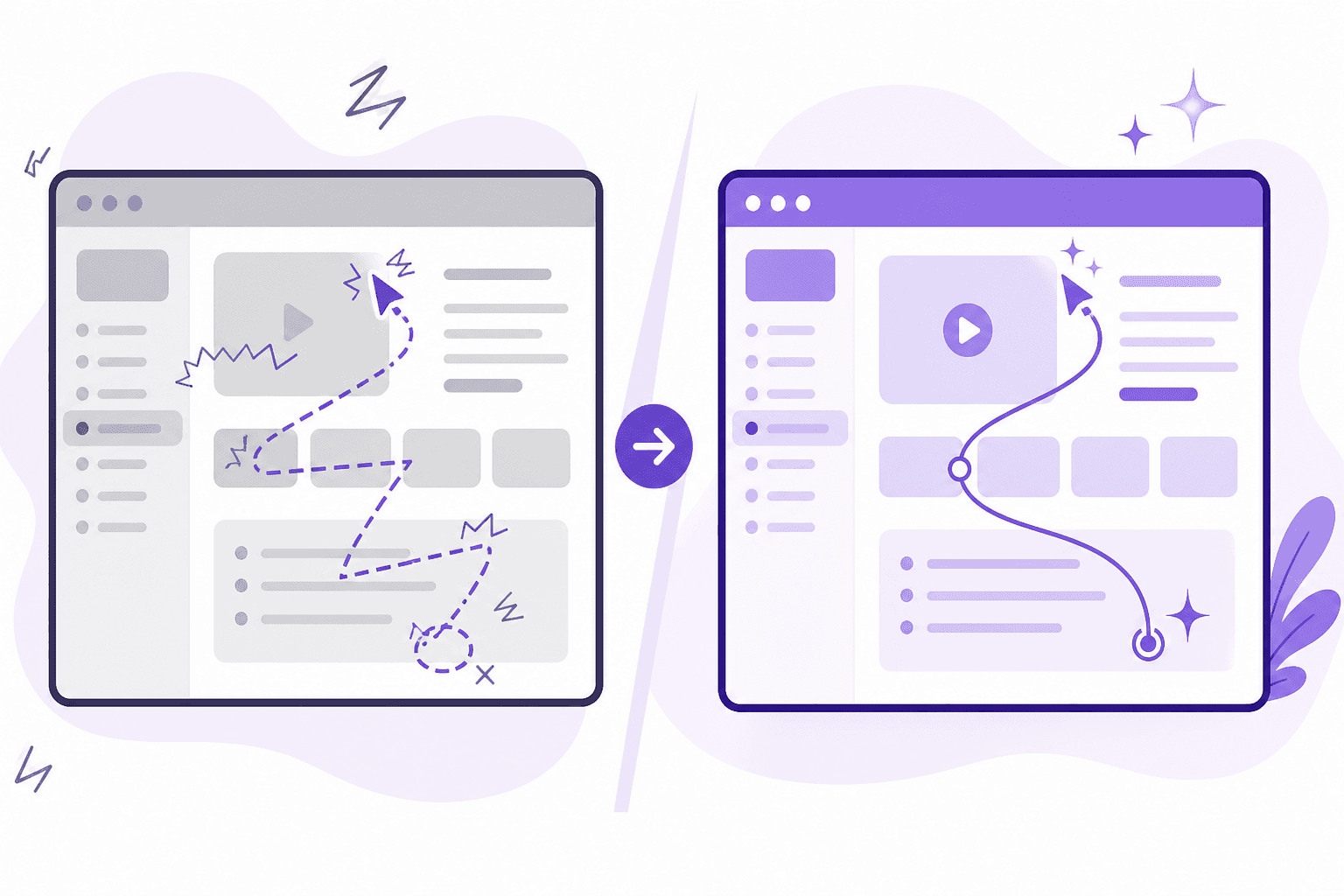
Real-world transformation: Before and after
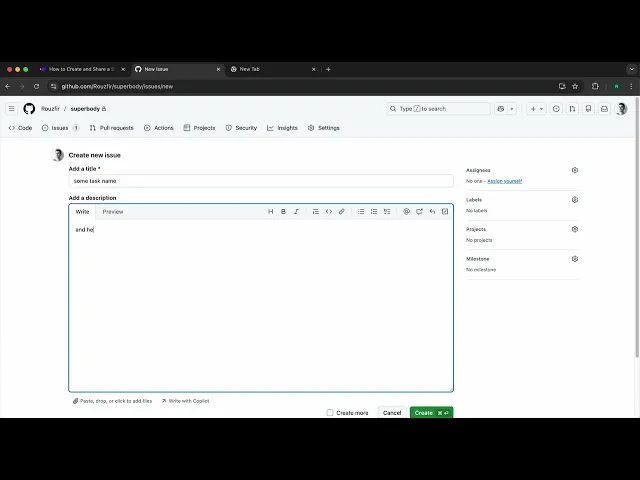
I recorded a sample screen cast. here is how it looks:
Note: Notice the mouse wandering and the long waits when typing
And this is the result after Clevera does its magic and apply edits and voices to that screen recording:
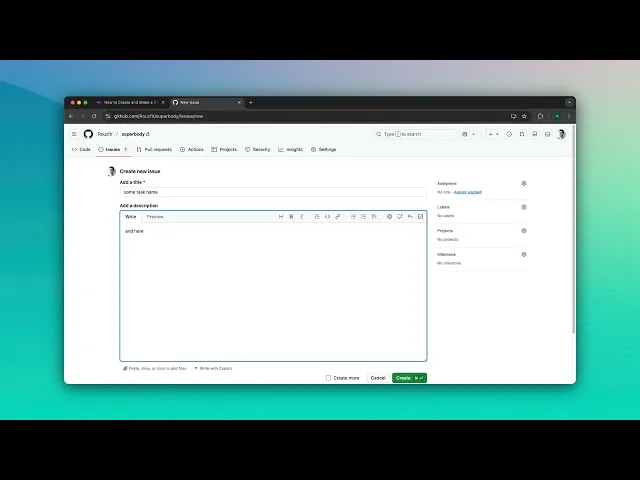
Note: Clevera has removed the pause and misclicks, added a professional voiceover, and used smart zoom to focus on the database creation steps.
The tip: record once, then “narrate later” on purpose
Here’s the trick I rarely see teams use intentionally:
Record silently. Narrate after.
When you narrate while recording, your brain does two jobs:
perform the task
explain the task
That’s how you get “umm… okay… so… click this… wait…”
When you record silently, you move faster and make fewer weird detours. Then an AI pipeline (like Clevera) can generate a clean voiceover from what actually happened, and you edit the words when you’re calm.
It’s like writing after you finish thinking, not while you’re thinking.
How this helps customer education videos not rot the week after launch
Customer education videos die for one boring reason: maintenance.
The UI changes, the narration is slightly off, a button moves, and suddenly your “helpful tutorial” becomes a trap.
Clevera’s speed makes it realistic to refresh content quickly, and LiveSync-style embeds mean small edits propagate without link swapping.
If your job is onboarding, adoption, or product marketing, that’s not a nice-to-have. It’s sanity.
FAQs
Can it handle mistakes like misclicks and backtracking?
If it’s doing real cleanup, yes. Clevera removes accidental clicks and irrelevant footage as part of its automated processing.
Do I need to record my own voice?
No. Clevera can generate a context-aware voiceover even if your recording is silent, then you can edit the script and regenerate.
Will the video feel “choppy” after cutting pauses?
It shouldn’t. The goal is smooth pacing, not aggressive jump cuts. Look for tools that re-time to match narration and smooth cursor movement. Clevera is built around that principle.
Can I repurpose the same recording into documentation too?
Yes. Clevera can generate a detailed article from the same capture, including relevant screenshots and structure, so your product walkthrough becomes both video and written guidance.
What’s the fastest way to test if this fits our team?
Pick one messy internal recording you’d never show a customer. Run it through the pipeline. If you’d confidently embed the output in your help center, you’ve got your answer.