How to collaborate on tutorial videos as a team (without losing control of quality or security)
Most tutorial video workflows start as a solo effort: one person records, edits, and publishes. That works when the content library is small. When your team needs dozens of tutorials across multiple products and features, the single-person model breaks down. You need multiple people contributing, but you also need consistent quality, controlled access, and confidence that your content and recordings are handled securely.
Here's how effective team collaboration on tutorial videos works in practice, and what to look for in a tool that supports it.
The problems that come with team-based tutorial production
Quality inconsistency: when multiple people record and produce tutorials independently, the output varies. Different narration styles, different visual formatting, different levels of polish. For customer-facing documentation, that inconsistency erodes trust.
No shared editing: one person records a tutorial, but the PM wants to update the narration, and the CS lead wants to add a callout. Without a shared editing environment, these changes happen in email chains, re-recordings, and file handoffs.
Access and permissions: not everyone on a team should be able to publish to your production help center. Some people should be able to record and draft; others should review and approve; others should have view-only access. Without role-based access controls, you either lock people out entirely or give everyone too much access.
Security of screen recordings: when team members record their screens, they may capture sensitive information — internal dashboards, customer data, unreleased features, credentials that appear on screen. How recordings are handled between capture and final output matters.
Stale content with no clear owner: in a team that's all able to publish, tutorial videos can go out of date with no one clearly responsible for updating them. You end up with a library where nobody's sure which videos are current.
A good collaborative tutorial workflow addresses all of these. Here's how.
How Clevera supports team collaboration on tutorial videos
Clevera is built for teams, not just individuals. Several features directly address the collaboration and security challenges of multi-person tutorial production.
Role-based access and permissions: Clevera supports clearly defined user roles and access levels. You can control who can record and create drafts, who can edit and publish, and who has view-only access to the content library. This prevents accidental publishes, keeps quality gates in place, and gives each team member exactly the access they need — no more, no less.
Real-time collaboration in the article editor: when a tutorial generates a written article alongside the video, multiple team members can edit that article simultaneously. Live cursors show who's working where in the document, making collaborative review and editing sessions as smooth as working in a shared Google Doc. A PM can refine the narration text, a CSM can add context to a section, and a technical reviewer can verify accuracy — all at the same time.
AI-enforced quality consistency: because Clevera's AI handles narration, visual polish, zoom, and cursor smoothing automatically, every tutorial your team produces maintains a consistent quality baseline. The output doesn't vary based on whether a junior team member or a senior one recorded it. You set the voiceover style and tone at the account level, and it applies uniformly.
Secure tutorial video collaboration from capture to publish: Clevera processes recordings securely via cloud servers. The recording stays within your team's account and is not accessible outside it. For teams concerned about sensitive on-screen content, Clevera's editor lets you blur specific regions of the video — redacting sensitive data, internal dashboards, or anything that shouldn't appear in published content.
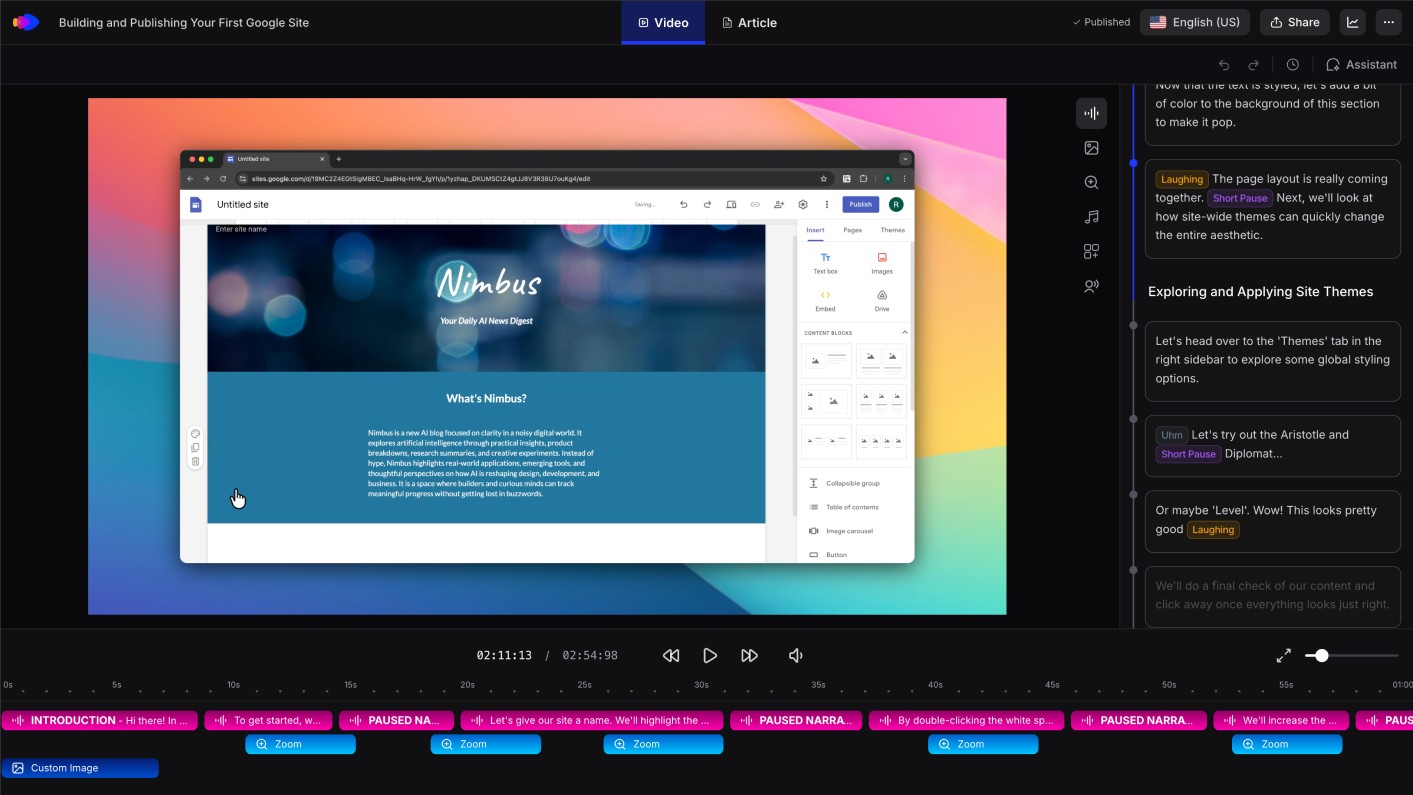
LiveSync for centralized updates: when a published tutorial needs updating, whoever has edit access makes the change in the Clevera editor and publishes. The update applies instantly across every embed. You don't need to coordinate a new file, send a new link, or update embed codes. The content is live and the team manages it from one place.
Setting up a collaborative tutorial workflow
Here's a practical structure for teams producing tutorial videos together:
1. Assign recording responsibilities by domain: have product managers record tutorials for their features, CS leads record tutorials for their onboarding flows, and support leads record tutorials for common troubleshooting scenarios. Each person records what they know best.
2. Use role permissions to separate creation from publishing: recorders and editors get creation access. A designated reviewer gets publishing access. This creates a natural quality gate without adding bureaucratic process — the reviewer approves before anything goes live.
3. Standardize before the first recording: align on voiceover tone and style, video visual settings, and article formatting before the team starts recording. In Clevera, these settings apply at the account level, so once they're configured, every tutorial automatically matches your standards.
4. Use the article editor for async review: after a recording is processed, share the article for review in Clevera's collaborative editor. Reviewers can leave comments, make edits, and flag anything before the video narration is finalized. This keeps review async rather than requiring a synchronous meeting.
5. Establish ownership per tutorial: assign each published tutorial to a team member who's responsible for keeping it current. When the product updates, that person re-records the affected section. With LiveSync, the update publishes without disrupting any existing embed.
Secure tutorial videos: what to check before you commit to a tool
If your team records software workflows that involve sensitive data — customer information, internal systems, unreleased features — it's worth asking specific questions before choosing a tutorial tool:
Where are recordings stored, and for how long?: recordings that sit in a third-party cloud indefinitely create unnecessary data exposure. Confirm how long raw recordings are retained after processing.
Who has access to recordings within the platform?: make sure only the people who should see the content can. This is where role-based permissions matter.
Can sensitive on-screen content be redacted?: look for a blur or redaction tool in the editor that lets you mask specific screen regions before publishing.
How is the published video hosted?: a video embedded on a public help center page is accessible to anyone. A video in an internal training portal may need access controls. Know whether the tool supports access-restricted video embeds.
Is there an audit trail?: for larger teams, knowing who made which edits and when matters for compliance and content governance.
A tutorial video tool that's genuinely built for teams handles these questions from the start. The ones built for individuals and scaled up to "teams" often treat security and permissions as afterthoughts.