How to generate support articles from screen recordings automatically
Your support team already knows the answer to most incoming tickets. The problem is that knowledge is locked up in people's heads, email threads, and Slack messages, not in your help center. So the same questions come in again and again, and your team answers them one by one.
The most effective way to break this cycle is to turn every answer into a published support article. The fastest way to do that is to record the answer once and let the AI generate the article from the recording.
Evaluating tools first? Clevera's AI documentation generator is built for this screen-recording-to-article workflow — see the product overview before you standardize on a process.
Why screen recordings are the best source for support documentation
When you explain a fix or a workflow to a customer on a call, you're already going through the exact steps someone would need to follow. You're clicking through the product in real time. You're showing, not just describing.
A screen recording captures that demonstration precisely. It doesn't rely on memory. It doesn't miss steps. It shows the exact sequence of actions in the exact version of the product.
That makes a screen recording a better starting point for documentation than a blank doc, a transcript, or a summary note. The information is already structured by the sequence of events. An AI can analyze that structure and turn it into a step-by-step article far more accurately than an AI trying to generate documentation from a text description.
How to generate support articles from recordings with Clevera
Clevera is built for exactly this workflow. Here's how it works:
Step 1: Record or upload the answer with Clevera Support teams often already have Loom clips or ticket screen recordings. Upload those, or capture fresh footage with the Clevera desktop app (Mac or Windows) or the Chrome extension for web-only flows. Walk through the solution to the support issue, the setup step, the configuration process, or whatever the ticket was about. You don't need to narrate as you go. Clevera's AI generates the explanation from the actions it observes.
Step 2: AI generates the support article After recording or upload, Clevera's AI analyzes the sequence of interactions, context-aware actions, and on-screen content. A writer agent produces a structured help article with numbered steps, section headings, and inline screenshots selected automatically from the recording.
Step 3: Review and edit if needed Most generated articles need minimal changes. Open the Notion-like editor, scan the content, add any context the recording didn't capture (like what to do if a certain option doesn't appear), and adjust the tone if needed.
Step 4: Publish to your help center Export to Markdown or HTML and push to Zendesk, HelpScout, Notion, Confluence, Intercom, or any other platform your team uses. The narrated tutorial video embeds at the top of the article automatically.
What the generated support article looks like
A support article from a screen recording in Clevera includes:
A title and brief introduction explaining what the article covers and who it's for
Numbered steps with full, instructional sentences
Auto-selected screenshots placed at each key step, with captions
Subheadings that break up longer processes into phases
An embedded tutorial video at the top for users who prefer to watch
The article reads like it was written by a technical writer who walked through the process themselves, because the AI was trained to produce instructional content, not transcription.
The support article from screen recording loop
The most valuable part of this workflow is how it changes your team's default response to recurring questions.
Old default: Answer the ticket, move to the next one. New default: Answer the ticket, record the fix, publish the article, link it in the ticket response.
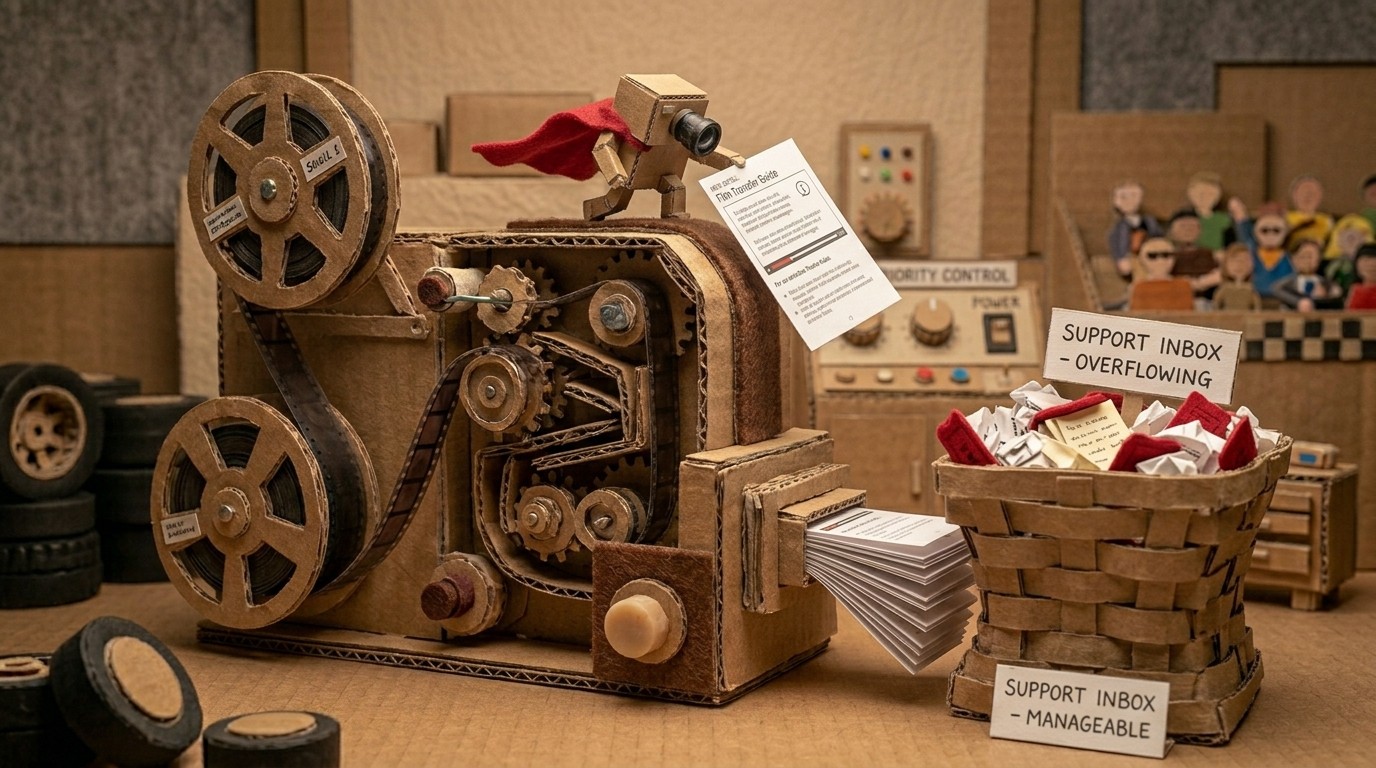
The second person who asks the same question finds the article in your help center and never files a ticket. The third person does the same. Over time, the most common issues become self-serve, and your team's ticket volume drops for the categories you've covered.
Clevera's LiveSync feature reinforces this loop. When the product UI changes and the steps in an article become outdated, you re-record the updated flow and publish a new version. The embedded video updates everywhere it's published, with no re-export needed.
Scaling support article production
One person on your support team can produce 5-10 support articles per day using this workflow. That's not a projection. That's the practical output when recording takes 5-10 minutes and article generation is automatic.
For teams that have been building their help center at a pace of 2-3 articles per week, this is a meaningful change. A well-maintained help center that covers 80% of common issues doesn't happen by writing articles one at a time. It happens by making article production a normal part of how your team resolves tickets.
For a broader look at automating documentation from screen recordings across your entire product, that guide covers the full strategy. For teams specifically focused on using the AI documentation generator for external help content, the feature overview has the full details on what's possible.
Your team is already generating the answers. The only question is whether those answers end up in your help center or disappear into your ticket history.